

WatchLine on your phone
Check your department from the mobile website or add WatchLine to your Home Screen. Use the same authorized account; you do not need a separate app-store account.
Android and Samsung
- Open your department's approved WatchLine address in Chrome.
- Open Chrome's menu and choose Add to Home screen, then Install if offered.
- Tap the WatchLine icon to open the app and sign in.
Google's Android installation instructions ↗
iPhone
- Open the approved WatchLine address in Safari.
- Open the Share menu and choose Add to Home Screen.
- Keep Open as Web App on if that option appears, then tap Add. Open the WatchLine icon and sign in.
Apple's Home Screen instructions ↗
Use the approved address
For normal access, use watchline.online. If WatchLine Support gives you a protected testing address, install that address for the test. The test app and public app can have different versions and notification permissions. Installing the preview does not launch it to departments.
If a recent update is missing
Close WatchLine from your phone’s recent apps, then reopen it. If the page still looks old, open the same WatchLine address in your phone’s browser and sign in with the same account.
Officer work on a phone
Check your calendar, open an entry for details, request an eligible open shift, submit leave and record your own hours. Your account and department role still control access. WatchLine needs an internet connection for current records and saved changes; a Home Screen icon is not an offline schedule guarantee.
See the rendered product
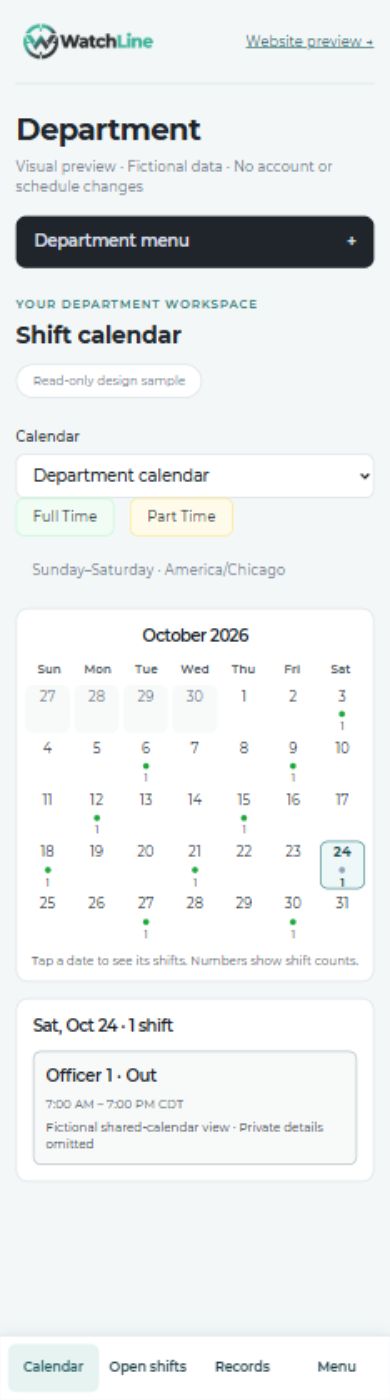
This fictional mobile calendar sample uses an application component. Open the image to inspect the full screen. For the latest complete screens and hours workflow, request a guided demonstration.
Mobile month calendar
Optional phone alerts
Phone alerts are being tested in the protected preview. Department delivery remains paused before launch. When enabled for your department, open Your notifications, select the phone-alert option and allow notifications when the device asks. On iPhone, use the installed Home Screen app for supported web push.
You can turn phone alerts off in WatchLine and change notification permission in the browser or phone settings. Email preferences are separate. Receiving a notification does not approve a request or assign a shift; open it and review the related work. If a session has expired, sign-in may be required first.
Phone alerts depend on a supported browser, permission and device settings. Focus/Do Not Disturb and other device controls may silence them. They are not an emergency dispatch channel.