

Try WatchLine's workflow
Follow an Officer request through a department decision, then practice a timesheet handoff. No sign-in is required.
Fictional practice only. These controls keep their state in this page; they do not access department records, save schedules, create accounts or send notifications. Refresh to reset.
Start the practice rotation below, request a shift as an Officer, then review it as Admin. In the timesheet example, choose the overtime split, submit, approve and finalize.
Choose the right coverage process
Monthly selections use hire-date order, with Admin decisions for equal dates. Officers submit a set of selections or Pass, then the next turn starts. Management chooses reviewed or automatic assignment. Targeted coverage instead collects simultaneous interest from selected groups or individuals, and management selects an officer.
The practice below demonstrates a simplified individual-request review process. It does not simulate monthly batch submission, automatic assignment, Admin tie decisions or targeted coverage.
In targeted coverage, officers see their own approval or declined result privately. A draft award still awaits management publication before it appears on the officer calendar. The practice stops at draft approval.
Absences and leave stay clear
Other officers see Out and affected times. Reasons and leave details are private to the affected officer and authorized Admin/Chief reviewers. Save a planned leave choice before the absence ends; afterward, record the actual leave used or confirm no paid leave used. A planned choice does not add hours to a timesheet.
1. Prepare the rotation
- Officer 1 — hired Nov 20, 2017
- Officer 2 — hired Nov 1, 2023
Settings lock when this practice starts. Turn advancement below simulates elapsed time; it does not control a live rotation.
Prepare the rotation, then start the practice session.
Practice a timesheet from start to finish
Fictional officer, September 1–15. Presentation only: these steps do not access accounts or save work.
In the application, completed scheduled shifts count automatically when enabled for the department. Officers record changes such as late arrival, early departure, call-offs and extra work, then choose overtime payout or comp before submitting the full timesheet for review.
Status: draft
1. Officer
Tuesday, September 8 · 7 AM–7 PM · 8 regular hours + 4 overtime hours.
Payout plus comp must equal 4 overtime hours. Use 0 for none.
2. Regular Admin review
Review the hours. Officer’s choice: PAY OUT 1.00 hours · COMP 3.00 hours. Admin cannot change it.
3. Admin or Chief finalization
An authorized Admin or Chief reviews the approved sheet. Finalized hours are locked and ready for PDF download.
Worked hours: 12.00 · Regular: 8.00 · OT PAY OUT: 1.00 · OT COMP: 3.00. Holiday credit appears separately when eligible. Payroll calculates pay and comp conversion.
See the rendered product
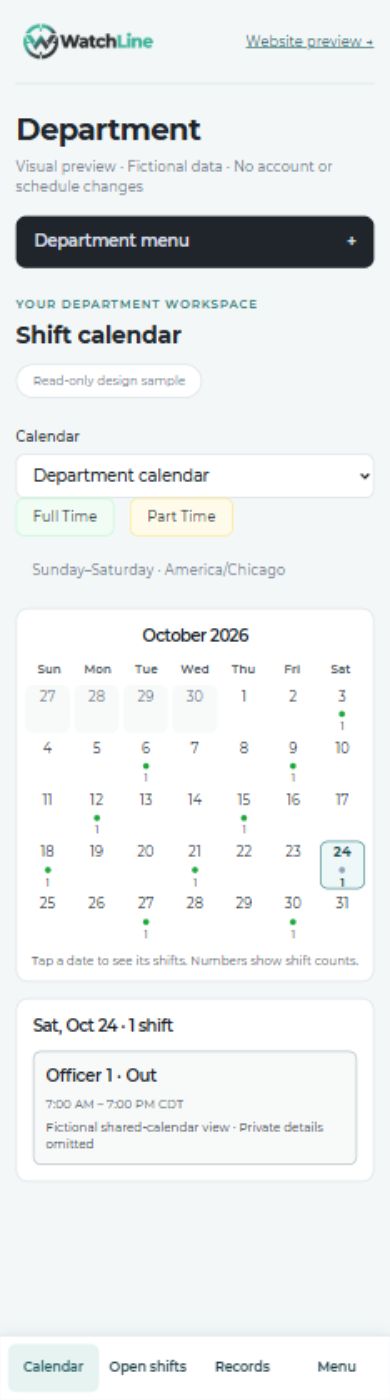
This fictional mobile calendar sample uses an application component. Open the image to inspect the full screen. For the latest complete screens and hours workflow, request a guided demonstration.
Mobile month calendar
See what payroll receives
View a fictional timesheet PDF ↗
View a fictional work and leave PDF ↗
Want to explore a full department?
This is a focused practice example. A full department demonstration uses an authorized account with fictional officers and schedules. Request a guided demonstration.